
Master Wallet and Gas Wallet setup via Waltrex Dashboard
Step 1: Login to Waltrex Dashboard
Log in to your Waltrex Dashboard to view and manage your wallets. From the dashboard, you’ll be able to monitor and create your Master Wallet, Gas Wallet, and any Deposit Wallets associated with your account. This interface also provides visibility into transaction history and overall system status.
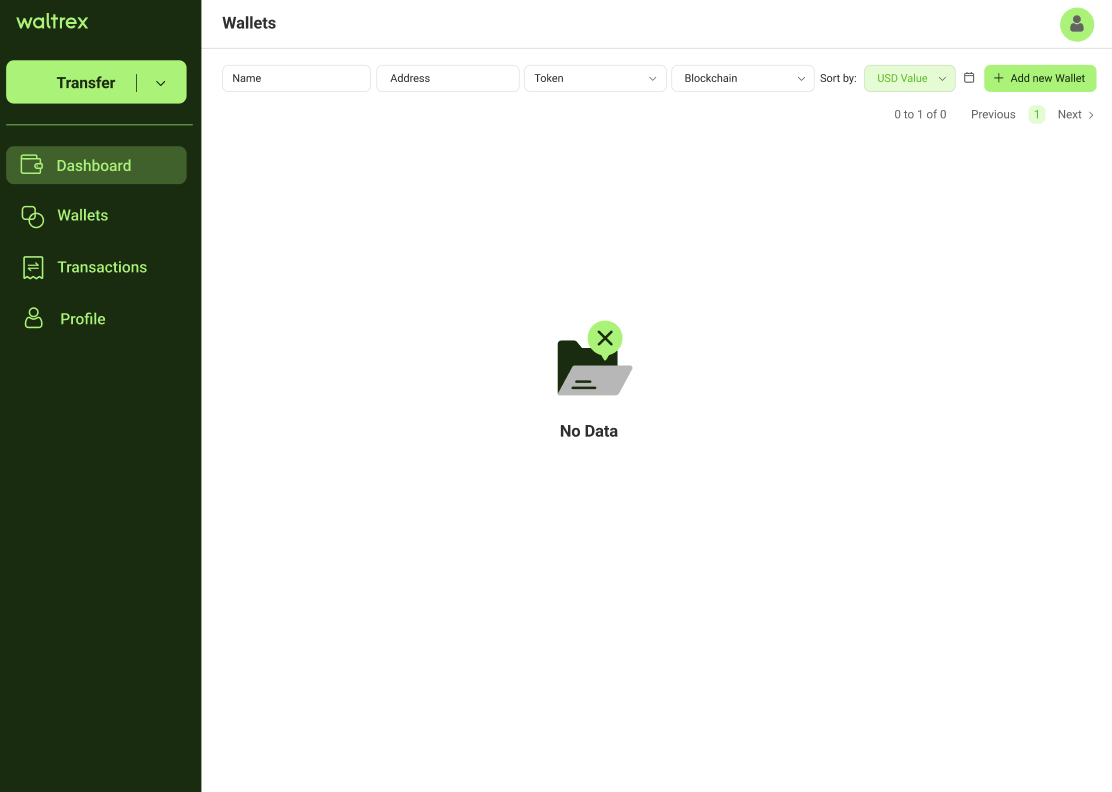
Step 2: Add Wallet
From the dashboard, navigate to the "Add new Wallet" button to set up a new wallet.
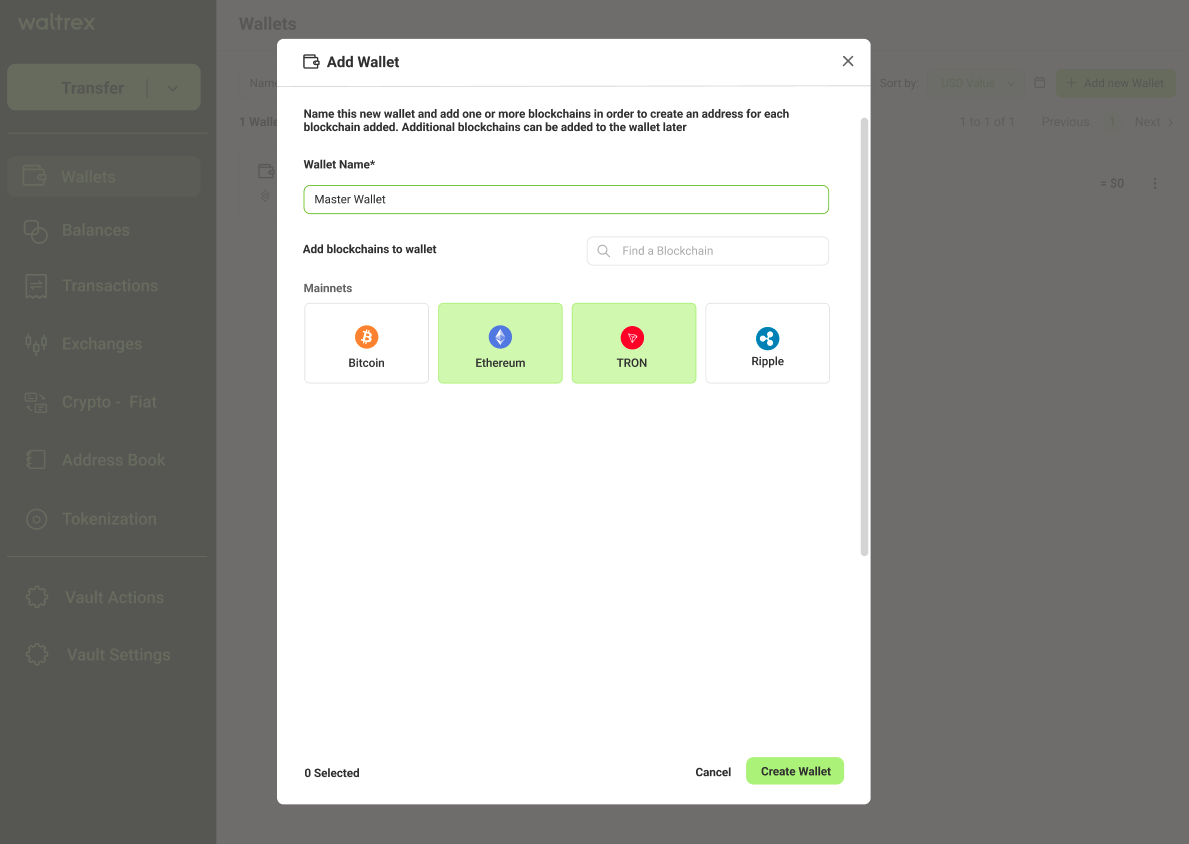
Name your wallet: Choose a unique and descriptive name to easily identify it (e.g., "Master_wallet").
Select Blockchains: Choose which blockchains the wallet should support (Ethereum, Tron). You can select one or multiple networks during creation.
You can always edit the wallet later to add support for additional blockchains as needed.
Step 3: Get Wallet addresses
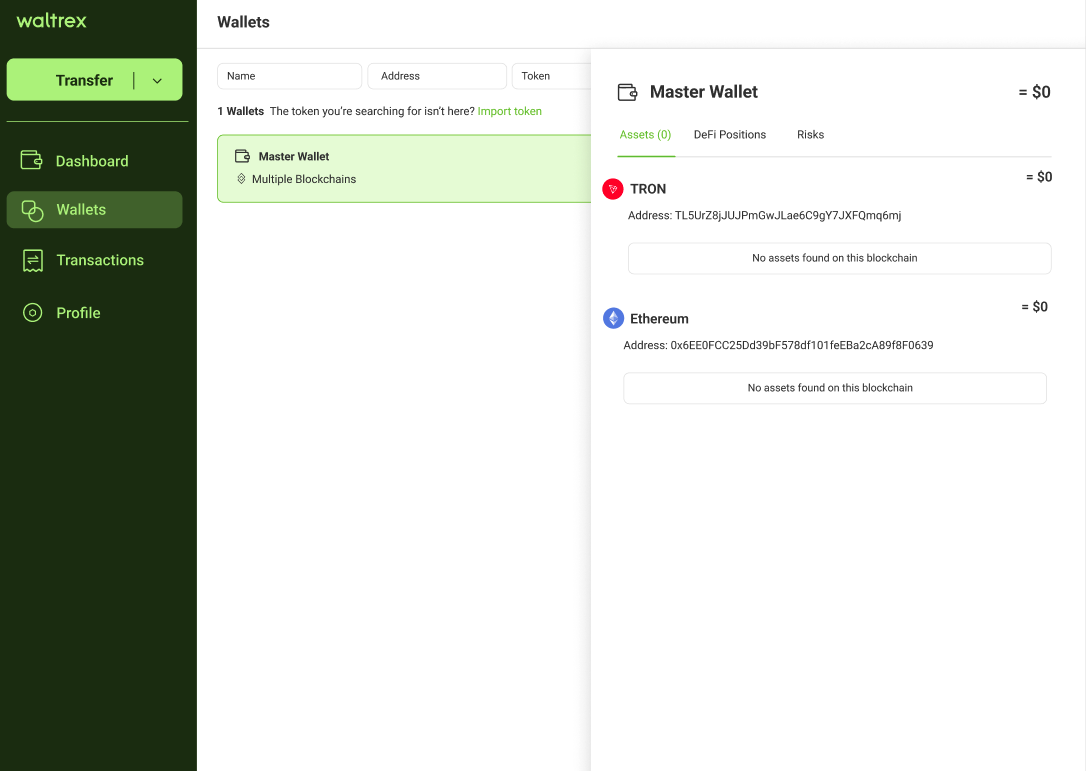
After creating the wallet, it will appear in your dashboard. Click on the wallet to view its details.
You'll see the available addresses for each blockchain you selected during creation (Ethereum, Tron). These are the addresses you'll use for that specific Wallet.
Step 4: Gas Wallet Creation
Follow the same process used to create the Master Wallet, but this time, set it up as your Gas Wallet.
- Name the wallet clearly (e.g., Gas_wallet)
- Select the required blockchains (Ethereum, Tron).
Once created, your Gas Wallet will appear in the dashboard. Click on it to view the blockchain specific addresses. You'll need to fund and share for whitelisting.
Remember to keep your Gas Wallet funded with enough ETH and TRX to cover transaction fees.
Step 5: Share Wallet addresses with Waltrex Contact
Once you've created your Master Wallet and Gas Wallet, and selected the required blockchains, you'll need to share the generated addresses with your Waltrex contact so they can be whitelisted for AutoSweep.
What to Share
Provide the blockchain addresses for each wallet you’ve created, clearly labeled by wallet type and blockchain
Master Wallet:
- Ethereum: 0x1234...abcd
- Tron: TXYZ...abcd

Gas Wallet:
- Ethereum: 0x5678...efgh
- Tron: TLMN...efgh
Make sure that each address is accurate and corresponds to the correct wallet type and blockchain.
Once your wallets are whitelisted, you’ll be ready to begin testing and using the AutoSweep service.